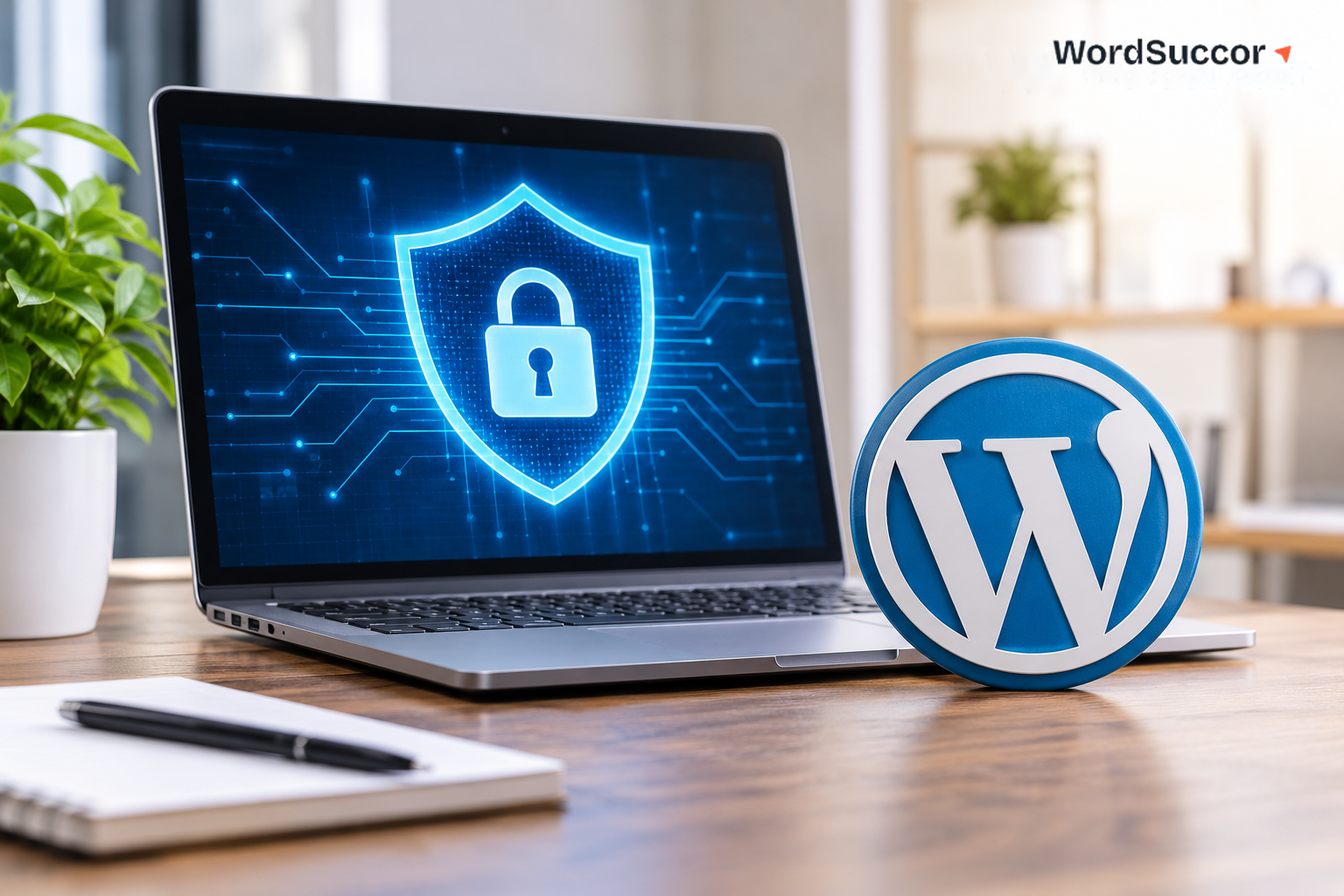
WordPress security covers everything that keeps your website safe from hackers, malware, and data loss. It touches your WordPress core files, your themes, your plugins, and how people log in. Get any one of those layers wrong, and the rest stop mattering.
This guide walks through the practices that keep a secure WordPress website running day after day, not just after an attack. It covers updates, plugin hygiene, authentication, server hardening, malware prevention, backups, and ongoing monitoring.
Whether you manage the site yourself or hand it to a developer, the same rules apply. None of these steps require deep security expertise. Most take minutes to set up once and then run quietly in the background.
Why WordPress Security Matters
WordPress powers a large share of the internet, and that scale makes it a constant target. Patchstack’s 2026 State of WordPress Security report counted more than 11,300 new WordPress vulnerabilities in 2025 alone, a 42 percent jump from the year before.
About 91 percent of those vulnerabilities sat inside plugins, not WordPress core. WordPress core itself had only a handful. The plugin ecosystem, the part that makes WordPress so flexible, is also where most of the risk actually lives.
Attackers move fast once a flaw goes public. Patchstack’s data shows mass exploitation often begins within about five hours of disclosure. That single number explains why patching cannot wait for a convenient afternoon.
The cost of ignoring WordPress vulnerabilities goes beyond the hack itself. A compromised site can get blacklisted by Google, lose search visibility, and take days to fully clean and restore. Customer trust, once lost to a hacked checkout page or a malware warning, is hard to win back.
Not every vulnerability type looks the same. Patchstack’s breakdown shows cross-site scripting behind a large share of disclosures, with broken access control and privilege escalation making up most of the attacks that actually succeed in the wild. In practice, that means a plugin bug rarely stays a small problem. It usually becomes a way in.
Keep WordPress Core Updated
WordPress core stays remarkably secure compared with the plugin ecosystem around it. Still, running an outdated core version removes protections the WordPress security team ships with every release.
Turn on automatic updates for minor and security releases. These updates rarely break anything and almost always close a known hole. Test major version updates on a staging site first, since bigger releases occasionally affect custom code or older plugins.
Keep your PHP version current as well. Hosting providers eventually stop supporting old PHP versions, and unsupported versions stop receiving their own security patches.
Manage Plugins and Themes Safely
Every plugin and theme you install adds new code, and new code means new potential vulnerabilities. This is the single biggest lever in WordPress security, given how much of the risk sits here.
Delete plugins and themes you are not actively using, even if they are deactivated. Deactivated code sitting on your server can still be exploited if an attacker finds a way to trigger it. Before installing anything new, check its last update date, its active install count, and its support forum activity.
Never install a “nulled” or pirated premium plugin or theme. These files are a common way attackers plant backdoors before a site owner even notices. Stick to the official WordPress.org repository or a plugin’s original developer.
Pay attention to what permissions a plugin actually needs, too. A contact form plugin has no reason to request access to your file system or database beyond its own settings. If a plugin asks for more access than its function explains, that alone is worth a second look before you install it.
Review your plugin list every few months. A plugin that made sense two years ago may no longer be maintained, and an abandoned plugin is exactly what Patchstack’s vulnerability data warns about.
Where possible, track your installed plugins against a vulnerability database like WPScan or Patchstack’s own feed. Several security plugins do this automatically and alert you the moment a plugin you run gets flagged. Catching that alert on day one is very different from finding out after an attacker already has.
Strengthen Authentication and Access Control
Most WordPress hacks do not start with clever code. They start with a guessed or stolen password.
Use Strong, Unique Passwords and Roles
Require strong, unique passwords for every admin, editor, and author account. Never reuse a password from another site on your WordPress login. Assign the lowest role each person actually needs, since a contributor account does not need admin-level access.
Add Two-Factor Authentication
Two-factor authentication stops most password-based attacks cold, even when a password leaks elsewhere. Pair a strong password with a code from an authenticator app rather than an SMS code, since SMS can be intercepted. This single step blocks the large majority of automated login attempts.
Limit Logins and Harden wp-config.php
Limit how many times someone can try to log in before getting locked out for a period. Rename or restrict your login page so automated bots cannot find it as easily. Remove unused admin accounts the moment someone leaves your team.
A few settings inside wp-config.php add another layer here. Setting DISALLOW_FILE_EDIT to true removes the built-in theme and plugin editor, so a compromised admin account cannot rewrite your code from the dashboard. Regenerating your WordPress security keys periodically also invalidates old login sessions after a suspected breach.
Harden Your Server and Hosting Environment
Security is not only a WordPress question. Your hosting environment and server configuration matter just as much.
Force HTTPS across your entire site, including the admin area, so login data and cookies cannot be intercepted in transit. Set file permissions correctly: 644 for files and 755 for directories is the standard baseline most hosts recommend. Restrict wp-config.php further where your host allows it, since it holds your database credentials.
Disable XML-RPC if your site does not use it, since it is a common target for brute-force attempts. Use SFTP rather than plain FTP for file transfers, since SFTP encrypts your login credentials in transit. Changing the default wp_ database table prefix to something unique also removes one easy assumption attackers rely on during automated attacks.
Choose hosting built for WordPress specifically, since generic hosting often lacks WordPress-aware firewall rules and malware scanning at the server level. A host that patches its own server software quickly closes off an entire category of risk before it ever reaches your site.
Prevent and Detect Malware
A web application firewall filters malicious traffic before it ever reaches WordPress itself. It blocks common attack patterns like SQL injection and cross-site scripting automatically. Most managed WordPress hosts include one, or you can add one through a security plugin.
Malware scanning should run on a schedule, not just when something looks wrong. A good scanner checks your core files, themes, and plugins against known-clean versions. File integrity monitoring flags any unexpected change the moment it happens, often before a visitor ever notices anything.
If your site does get infected, isolate it quickly and restore from a clean, recent backup. Trying to manually remove malware often misses hidden backdoors attackers leave behind for later. A professional cleanup service is usually faster and safer than doing it yourself.
Once the site is clean, reset every password and regenerate your WordPress security keys, since a compromised site may have leaked more than just files. If Google flagged your site as unsafe during the infection, request a review through Search Console once the cleanup is confirmed. Skipping that step leaves a warning label on your site long after the actual problem is fixed.
Back Up Your Site the Right Way
A backup is only useful if it actually restores when you need it. Schedule automatic backups daily if your site changes often, such as an active store or blog, and weekly for a mostly static site.
Store backups somewhere other than your own server, since a compromised server can take local backups down with it. Cloud storage or a dedicated backup service both work well here. Keep several recent versions rather than just the latest one, in case an infection sat unnoticed for a while.
Test a full restore at least once every few months. A backup nobody has ever actually restored is really just an assumption. Restoring to a staging environment first lets you confirm everything works before you ever need it under pressure.
Monitor Your Site Continuously
Security is not a one-time setup. Ongoing monitoring catches problems before they turn into an outage or a full data breach.
Track uptime so you know within minutes if your site goes down unexpectedly. Review activity logs for logins from unfamiliar locations or unusual file changes. Many WordPress security services bundle uptime monitoring, malware scanning, and firewall protection into a single managed plan.
If managing all of this yourself is not realistic, that is exactly what ongoing WordPress security services exist for. A managed plan means someone is watching your site even when your team is not, and a real person gets alerted the moment something looks off rather than weeks later.
A Quick WordPress Security Checklist
Use this as a recurring checklist, not a one-time task list.
- Update WordPress core, themes, and plugins on a regular schedule
- Remove unused plugins, themes, and inactive user accounts
- Require strong passwords and enable two-factor authentication for every admin
- Install a web application firewall and run scheduled malware scans
- Force HTTPS and set correct file permissions on your server
- Back up your site daily or weekly, and store backups off-server
- Test your backup restore process at least twice a year
- Monitor uptime, activity logs, and file changes continuously
This list covers the fundamentals. A dedicated WordPress maintenance plan can handle every item on it for you, on an ongoing basis.
Keep Your Site Secure Going Forward
Keeping a secure WordPress website is an ongoing job, not a one-time project. If your team does not have time to manage this in-house, we can help.
WordSuccor’s WordPress development services include security hardening, updates, and monitoring built into every build.